Gaming Stream Overlay Ideas: 9 Layouts That Don’t Block the Game
The best gaming stream overlay ideas all follow one rule: decorate the edges, never the middle. Someone opened your stream to watch the game, not to read your donation goal — so every pixel your overlay covers has to earn its place, and most free overlay packs fail that test in the first five seconds.
Below you get nine overlay layouts that hold up on a real live gaming channel, exact pixel sizes for webcam frames, alert boxes and lower thirds, the three dead zones YouTube’s own player takes before your design even loads, and a do/don’t list you can check your current scene against tonight. Streaming to Twitch as well? The panel, offline-screen and badge sizes are different there — those are in our GTA 6 Twitch overlay guide.
Build the canvas first, decorate second
Every scene is designed on a 1920 × 1080 px canvas at 1× — the same base resolution you set in OBS or Streamlabs. Design bigger and your text softens on the downscale; design smaller and the edges crawl.
- Export PNG-24 with alpha. PNG-8 fringes every soft edge and every rounded corner with a gray halo.
- One file per element. Webcam frame, lower third, goal strip and alert box as separate PNGs — then you can move one piece without re-exporting the set.
- Cap coverage at about 12% of the frame on gameplay scenes. Above that, viewers start describing your stream as “busy.”
- Judge it at 480 × 270. That is roughly the size a phone viewer sees. If a label disappears there, it does not exist.
The three dead zones every gaming stream overlay idea must respect
Before your design loads, YouTube has already claimed parts of the frame. Put an element in one of these three bands and it gets covered by the player, the app chrome or YouTube’s own subscribe watermark — on the exact devices where most of your live audience is watching.
- The bottom strip. The player’s control bar and scrubber sit across the bottom of the frame whenever a viewer touches the screen. Anything in the lowest ~60 px at 1080p spends half the stream hidden.
- The top strip. In the mobile app, the video title, cast and settings icons float over the top of the frame. Logos parked in the top-left corner get half-covered on phones.
- The bottom-right corner. Your channel watermark — YouTube’s own 150 × 150 px subscribe button — lands here. Putting your logo in the same corner gives viewers two of your marks stacked on top of each other. Pick one, and let these YouTube watermark ideas handle the other.
Stream overlay size cheat sheet
Every stream overlay size below is measured on the 1920 × 1080 canvas. Scale proportionally if you stream at 1440p — the ratios are what matter, not the absolute numbers.
| Element | Size at 1080p | Where it goes |
|---|---|---|
| Webcam frame — gameplay scene | 480 × 270 px | Bottom-left, 40 px inset. Anything larger steals the game. |
| Webcam frame — chat scene | 960 × 540 px | Left half of the frame, centered vertically. |
| Circular facecam | 320 × 320 px | Corner. Cheapest way to look deliberate. |
| Lower third / name bar | 640 × 90 px | Left, top edge no lower than y = 940. |
| Alert box | 640 × 200 px | Horizontally centered, in the top third. |
| Goal / recent-sub strip | 400 × 56 px | Left edge, stacked under the webcam. |
| Scene card (Starting Soon, BRB) | 1920 × 1080 px | Full frame — the only overlay allowed to fill it. |
| Channel watermark | 150 × 150 px | Uploaded in YouTube Studio, not in OBS. |
| Vertical scene | 1080 × 1920 px | Keep every element inside 1080 × 1420. |
9 gaming stream overlay ideas that survive a real stream
- The corner frame. Webcam at 480 × 270 in the bottom-left, a 3 px border in your primary brand color, nothing else on screen. Works for every game, reads on a phone, takes ten minutes to build. If you only ever make one scene, make this one.
- The lower-third bar. A 640 × 90 bar pinned left at y = 920 carrying your handle and what you are doing — “Chapter 3 · first playthrough.” It orients people who arrive 40 minutes in, and it works on no-cam streams.
- The L-frame. Webcam down the left column plus a thin strip across the bottom for goals and recent subs. It reads as a broadcast, but it eats close to 18% of the frame — save it for chat-heavy streams, not for night driving.
- Frameless facecam. Background removed, no box, no border — just you at the bottom-right over the gameplay. The cleanest look on this list and the hardest to pull off: you need even lighting and a plain wall or the cutout edge flickers all stream.
- The neon border. A 6 px gradient frame around the whole canvas in two brand colors with the corners cut open. It costs nothing in the middle of the screen and brands every clip someone reposts, which is where most new viewers meet you.
- The scene set. Starting Soon, Be Right Back and Ending as three full-frame cards using the same type and palette as your thumbnails. These are the only overlays allowed to fill the screen — and the ones people screenshot.
- The goal strip. A 400 × 56 strip on the left edge showing the latest subscriber and one goal. One. A stack of four counters reads as a donation page rather than a channel.
- The mission card. A 360 × 120 panel you toggle on for the first 30 seconds of a segment — “Heist 2 · no deaths” — then hide. Toggled overlays beat permanent ones every time: they inform when it matters and vanish when it doesn’t.
- The vertical scene. A second 1080 × 1920 layout with the cam at the top and a caption bar beneath it. YouTube’s vertical live feed runs in the mobile app and is not available on tablets, so design it phone-first instead of cropping your desktop scene.
DO
- Check where the game puts its own HUD first — minimaps and health bars love the same corners designers do.
- Reuse the 2–3 colors already on your banner and thumbnails.
- Keep body text at 22 px or larger at 1080p.
- Watch back your own VOD on a phone before you call the scene finished.
DON’T
- Place anything in the bottom 60 px or the top 40 px of the frame.
- Loop an animation faster than every 8 seconds — it pulls the eye off the game.
- Run more than three elements on a gameplay scene.
- Use any official Rockstar logo or press art in your overlay.
An overlay is only as good as the identity inside it
Here is what separates a stream that looks funded from one that looks free: the overlay is not a separate design project. It is your logo, your two colors and your type, arranged for a 16:9 canvas. When the mark in your webcam frame is the same mark on your banner and your thumbnails, a viewer who clips your stream still knows whose clip it is.
So build the identity before the scene. Lock your gaming channel brand colors down to three, pick a display face from these gaming channel fonts that still reads at 22 px, then lay out the overlay with what you already have. If your openers and end cards are still missing, these gaming channel intro ideas cover the motion side of the same system.
Get the logo and watermark your overlay is built from
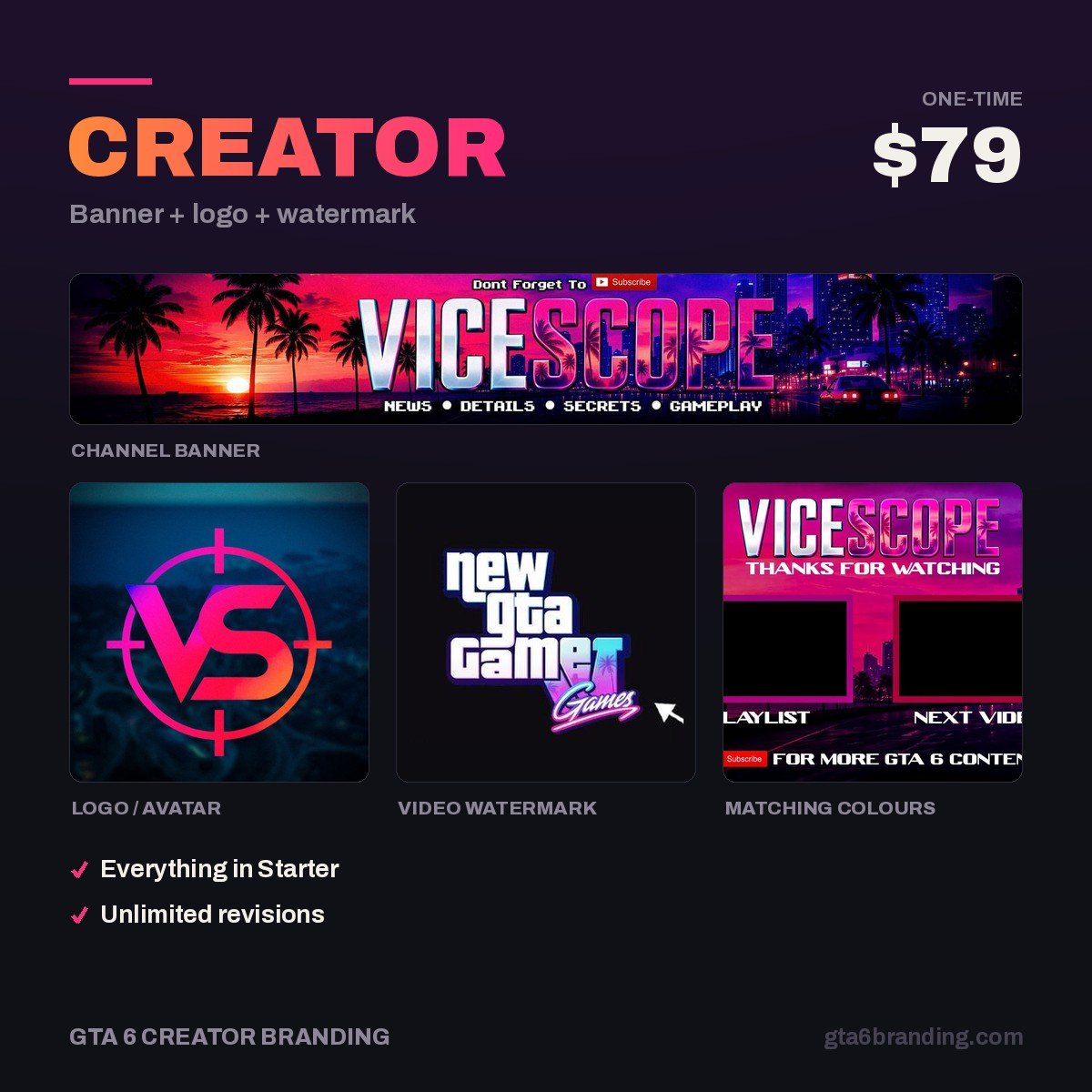
You cannot design a clean overlay around a logo that falls apart at 40 px. Our Creator package — banner + logo + watermark, $79 gives you the three pieces every scene reuses, in matching colors, exported at the sizes YouTube actually asks for — so your webcam frame, your banner and your subscribe watermark finally look like one channel.
Want the whole set in one pass, including intro and outro assets? That is the Ultimate — Full Channel Identity ($199).
Have your scenes ready before November 19
GTA 6 releases November 19, 2026 on PS5 and Xbox Series X|S. Launch week is the single worst time to be fiddling with OBS sources: you want to go live within minutes of your first session, not after an hour of nudging PNGs. Build and test all three scenes — gameplay, chat, Starting Soon — in the weeks before, then spend launch week streaming. The day-by-day version is in our GTA 6 launch week upload plan.
Streaming GTA 6 on more than one service? The cross-platform guide to GTA 6 stream overlay design shows which of these assets travel unchanged between Twitch, Kick and YouTube Live, and which ones need a separate export.
FAQ
What size should a stream overlay be?
Design the full scene on a 1920 × 1080 px canvas and export each element as its own transparent PNG-24. Inside that canvas, a gameplay webcam frame sits around 480 × 270 px, a lower third around 640 × 90 px, and an alert box around 640 × 200 px.
How much of the screen should a gaming overlay cover?
Keep it under roughly 12% of the frame on gameplay scenes, and under three visible elements at once. Chat and Just Chatting scenes can go higher because there is no gameplay to hide. Full-frame coverage belongs only to Starting Soon, Be Right Back and Ending cards.
Are free stream overlays worth using?
A free pack is fine for your first few streams, and better than no overlay at all. The catch is that hundreds of channels run the same one, and the colors rarely match your banner or thumbnails. Once you are streaming weekly, a custom set built from your own logo pays for itself in recognition.
Do I need a separate overlay for vertical streams?
Yes. A cropped 16:9 scene puts your webcam and labels in the wrong places on a 9:16 screen. Build a second 1080 × 1920 layout with the cam at the top and text in the middle band. YouTube’s vertical live feed runs in the mobile app and is not currently available on tablets.
GTA 6 Creator Branding is an independent creator branding service and is not affiliated with Rockstar Games or Take-Two Interactive.